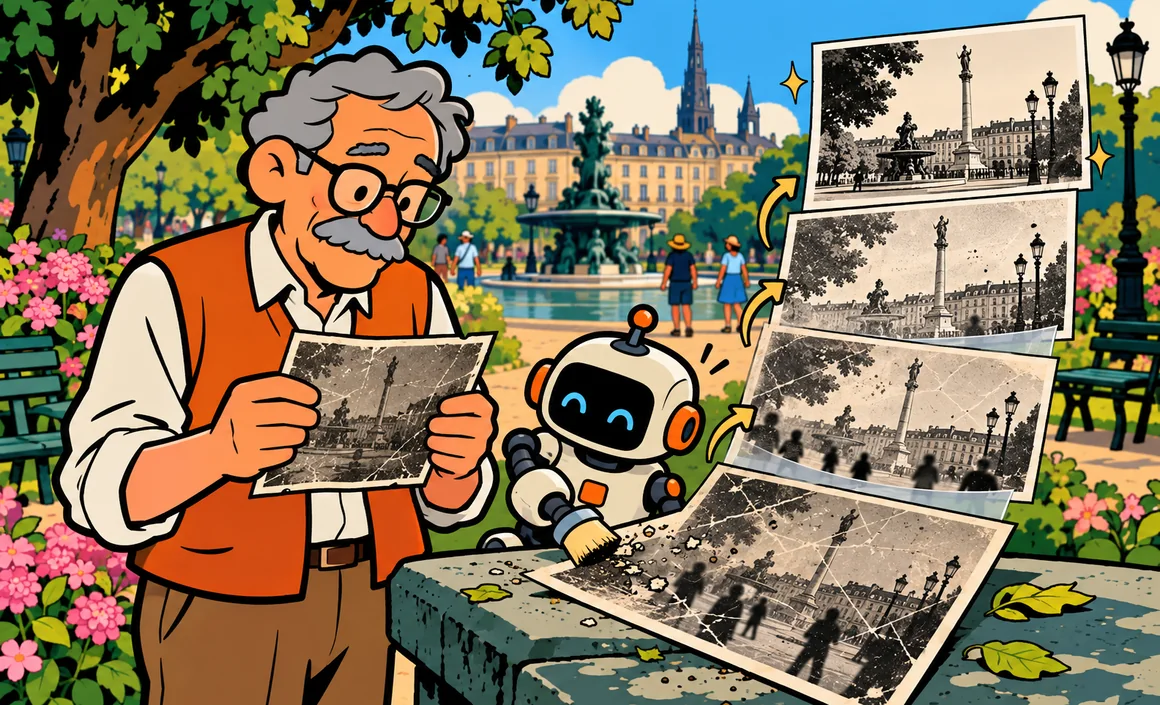
A gray sky in your vacation photo, a stranger walking through the frame at the worst moment, a cluttered background behind something you want to sell online, an old family photo that’s gone a bit dull: for a long time, fixing all that took software like Photoshop and hours of learning. Today, editing a photo with AI is within everyone’s reach. You upload the image, explain in plain English what you want to change, and the tool takes care of it.
In this guide, I walk you through four tools you can use without Photoshop (ChatGPT, Gemini, Canva and the web version of Adobe Firefly), a step-by-step method, ready-to-copy prompts and, above all, the rules to follow when a photo shows real people. Because editing is easy; editing honestly takes a little thought.
Key takeaways
- ChatGPT lets you edit an uploaded photo in natural language, even on the free plan, within a limit that isn’t publicly disclosed.
- Gemini offers editing too, but it’s limited to users 18 and older.
- Canva has dedicated tools: Magic Edit, Magic Eraser, background removal and background generation.
- Adobe Firefly (web version) offers Generative Fill, with a few free generations per day.
- Real people’s faces: get their consent and never create a misleading edit.
Information checked on September 29, 2026.
Contents
- What AI Can Do (and What It Changes) in Photo Editing
- 4 Tools to Edit a Photo Without Photoshop
- Which Tool Should You Choose?
- How to Edit a Photo, Step by Step
- Ready-to-Copy Prompts
- Editing Photos of People: The Rules to Follow
- Mistakes to Avoid and AI's Limits
- My Checklist Before Posting an Edited Photo
- Frequently Asked Questions
- The Bottom Line
What AI Can Do (and What It Changes) in Photo Editing
Traditional photo editing means manipulating pixels: selecting an area, cloning a texture, adjusting a light curve. AI editing works differently. You describe the result you want, and a model generates the modified parts of the image. When you ask it to erase a passerby, the tool doesn’t “reveal” what was hidden behind them: it invents a plausible background to fill the gap.
That’s an important distinction. It explains both the power of these tools and their limits: the result is often convincing, but it’s never a faithful record of reality. Keep that in mind, especially for photos that serve as evidence or a record of events.
In practice, here are the edits the tools covered here can handle, depending on each one’s features:
- remove a distracting element (an object, a passerby, a power line);
- add an element (a vase on a table, clouds in an empty sky);
- change or remove the background, for a product photo for example;
- modify a specific area without touching the rest;
- expand an image beyond its original edges (with Canva, for example);
- combine several images (with Gemini);
- get a transparent background (with ChatGPT).
4 Tools to Edit a Photo Without Photoshop
ChatGPT: Edit by Chatting
ChatGPT is probably the easiest way in. You upload your photo to the conversation, then type what you want to change. Editing is available on every plan, including free, with a separate limit for images, distinct from the message limit. OpenAI doesn’t publish an exact number; the interface tells you when your counter resets.
Useful features include targeted edits, adding or removing elements, text in the image and transparent backgrounds. The Plus subscription costs $20 a month and raises the limits. As for age, ChatGPT is open from 13 (or the minimum age in your country), with parental permission if you’re under 18. To go further, read my guide to creating images with ChatGPT.
Gemini: Powerful, but Age-Restricted for Editing
Gemini, Google’s assistant, edits images with its Nano Banana 2 model. It can make local edits, transform one image based on another, combine several images and keep a character consistent from one image to the next.
Important: image editing in Gemini is limited to users 18 and older. In the US, you also need to be 13 to use Gemini with your own Google account. Without a plan, images can be downloaded at up to 1K; with a Google AI plan, output can go up to 2K. These plans start at $9.99 a month. It’s all covered in my article on free Gemini.
Canva: “Magic” Tools for Everyday Edits
Canva doesn’t work like a conversation but like a visual editor, with dedicated tools: Magic Edit (replace or modify a selected element), Magic Eraser (erase an object), Magic Expand (extend the image), Magic Grab (pick out elements) and background removal or generation.
The free plan gives you a quota of up to 20 AI uses, and some features are reserved for paid plans. Canva Pro costs $15 a month or $180 a year. The tool is open from age 13, and commercial use is allowed for lawful purposes, according to Canva’s terms. Its big advantage, in my eyes: once the photo is edited, you can turn it straight into a flyer or a post. See my Canva AI guide.
Adobe Firefly (Web): Adobe Without Photoshop
You don’t need Photoshop to use Adobe’s tools: Firefly works right in your browser. It lets you generate and edit images, notably with Generative Fill, which replaces or fills in a selected area.
The free version offers a limited number of daily generations. Paid plans start at $9.99 a month (Standard) and $19.99 a month (Pro). You need an Adobe ID, available from age 13, and Adobe says Firefly is designed for commercial use.
Comparison Table
| Tool | Free editing | Strengths | Minimum age |
|---|---|---|---|
| ChatGPT | Yes, undisclosed limit | Natural-language editing, transparent background | 13 (parental permission under 18) |
| Gemini | Yes, but editing is age-restricted | Local edits, combining images | 18 for editing |
| Canva | Up to 20 AI uses | Magic Eraser, backgrounds, layout | 13 |
| Adobe Firefly (web) | Limited daily generations | Generative Fill, built for commercial use | 13 |
Which Tool Should You Choose?
Here’s my take, based on the most common situations:
- You just want to remove an object or a passerby: Canva’s Magic Eraser is, in my view, the most intuitive, since you just brush over it.
- You want a clean background to sell an item: Canva (background removal) or ChatGPT (transparent background).
- You want a more creative transformation (change the mood, season or style): ChatGPT or Gemini, which handle detailed instructions well.
- You’re working for a client or a business: Firefly, whose models are designed for commercial use, deserves a look.
How to Edit a Photo, Step by Step
Let’s take an example: Tom wants to post a photo of his town’s holiday market in his community group, but a trash can and a badly parked car are ruining the foreground. Here’s the process I recommend.
- Keep a copy of the original. Never work on your only version of the photo.
- Pick the right starting photo: sharp, well exposed, in the highest resolution possible. AI improves an image; it can’t work miracles on a blurry photo.
- Upload it to the tool: drag it into the conversation (ChatGPT, Gemini) or open it in the editor (Canva, Firefly).
- Describe one change at a time: “remove the green trash can on the left.” Then, once you’re happy with the result, “remove the white car in the back on the right.”
- Say what must not change: the people, the colors, the framing, the lighting.
- Zoom in on the result: check the edges of the edited area, faces, hands and the text on signs.
- Compare with the original side by side to spot any unintended changes.
- Export in the right format and, if the photo will be published, ask yourself whether the edit should be disclosed.
Ready-to-Copy Prompts
Here are instructions you can paste as is into ChatGPT or Gemini, adapting the parts in brackets.
To remove an element:
In this photo, remove [the green trash can in the left foreground]. Replace it with a natural continuation of the scene (pavement, sidewalk). Don't change anything else: keep the people, colors, lighting and framing exactly the same.
To change a product’s background:
Cut out [the blue ceramic vase] and place it on a plain white background, with a soft shadow under the object. Keep the vase's shape, color and reflections strictly identical. Square format.
To get a transparent background:
Isolate [the mug] from this photo and generate an image with a transparent background. Don't change the object itself.
To brighten up a dull photo without distorting it:
Slightly enhance this photo: a bit warmer light, crisper contrast, livelier but natural colors. Don't change any element of the scene and don't alter the faces.
For an intentionally creative transformation:
Turn this photo of my backyard into a watercolor-style illustration, with pastel colors and a springtime mood. Keep the overall composition: the table in the center, the tree on the right.
To add an element:
Add [a bouquet of sunflowers in a glass vase] on the table, in the center. Adjust the lighting and shadows so the bouquet blends in naturally. Don't change anything else.
If you want to learn to write your own instructions, my guide on writing a good image prompt breaks down the structure to follow.
Editing Photos of People: The Rules to Follow
For me, this is the most important part of this guide. An edited photo can be shared, reposted and taken out of context. What started as a joke between friends can become public humiliation, or misinformation.
Real People’s Faces
A person’s face is part of their identity, and everyone has a say in how they’re portrayed. Changing someone’s appearance (their figure, age, expression or clothing) is never trivial. The tools also apply their own rules and may refuse some requests, especially those involving minors or sensitive content.
Consent
Before editing and then posting a photo that shows anyone other than you, ask for their permission. That goes double for kids: for a class photo or a birthday party picture, you need the parents’ OK. And if someone asks you to take an image down, do it.
No Misleading Edits
Here are the limits I set for myself, and I encourage you to adopt them too:
- never create a scene that didn’t happen and present it as real (putting someone somewhere they weren’t, with someone they never met);
- never edit a photo to hurt, mock or humiliate someone;
- don’t doctor a product photo to the point of misleading a buyer (hiding a scratch or a defect);
- don’t alter a document or a photo used as evidence;
- disclose the edit when the context calls for it, for example in a news post.
Some tools add provenance information to images created or edited with AI. Don’t try to remove it: it’s part of keeping things transparent.
Rights to the Original Photo
Only edit photos you took yourself or that you have the right to use. An image you found online belongs to someone. And for commercial use, reread the terms of the tool and your plan before publishing.
Mistakes to Avoid and AI’s Limits
Here are the most common traps:
- Asking for too many changes at once: the result becomes unpredictable. One edit, one check, then the next.
- Forgetting to say what should stay the same: some tools regenerate more than the targeted area, and a face can change subtly.
- Not zooming in: flaws hide in the details (hands, text, object edges, reflections).
- Starting from a photo that’s too small: without a plan, Gemini exports at up to 1K, which may be tight for printing.
- Overwriting the original: always keep a copy.
- Thinking AI restores reality: when it “repairs” a damaged old photo, it invents the missing details. The result may look nice, but it isn’t a faithful record.
I also recommend keeping a critical eye on any text in the image (storefronts, signs): it can get garbled after an edit. Reread it before you post.
Finally, free quotas are limited and vary by tool. If you edit regularly, it can be worth comparing plans, for example in my list of free AI tools.
My Checklist Before Posting an Edited Photo
- I kept a copy of the original photo.
- I have the rights to the original photo.
- The people in the photo agree to it being edited and posted.
- The edit doesn’t create a misleading scene.
- I zoomed in on faces, hands, edges and text.
- I compared the edited version with the original.
- I disclosed the edit if the context calls for it.
- For commercial use, I reread the tool’s terms.
Frequently Asked Questions
Can you edit a photo with AI for free?
Yes. ChatGPT offers editing on every plan, including free, within a limit that isn’t publicly disclosed. Canva gives you up to 20 AI uses for free, and Firefly a few free generations per day. Gemini also allows editing without a plan, but only for users 18 and older.
What’s the easiest tool for beginners?
In my opinion, ChatGPT if you like explaining what you want in sentences, and Canva if you’d rather click and brush over the area to change. Both take just a few minutes to get the hang of.
Why won’t Gemini edit my photo?
Image editing in Gemini is limited to users 18 and older. Tools may also refuse some requests under their rules, especially those involving real people, minors or sensitive content.
Can you edit someone else’s photo?
Technically yes, but always ask the person’s permission before editing and posting their image, and the parents’ permission for a child. Never use an edit to deceive, hurt or humiliate.
Can you use an AI-edited photo commercially?
It depends on the tool and the plan. OpenAI says the output belongs to the user to the extent permitted by law, Canva allows lawful use under its terms, and Adobe designs Firefly for commercial use. Reread the terms and respect other people’s rights.
Can AI restore an old family photo?
It can revive colors, soften scratches or improve apparent sharpness. But it invents the missing details: the result is an interpretation, not a faithful reconstruction. Always keep the original.
The Bottom Line
To edit a photo with AI without Photoshop, pick the tool that fits your need: ChatGPT to edit by chatting, Gemini if you meet the age requirement, Canva for everyday edits and layout, Firefly on the web for more professional use. Work one change at a time, say what should stay the same, check every detail, and respect the people in your photos: their consent first, and never a misleading edit.
To go further, check out my complete guide on how to create an image with AI.