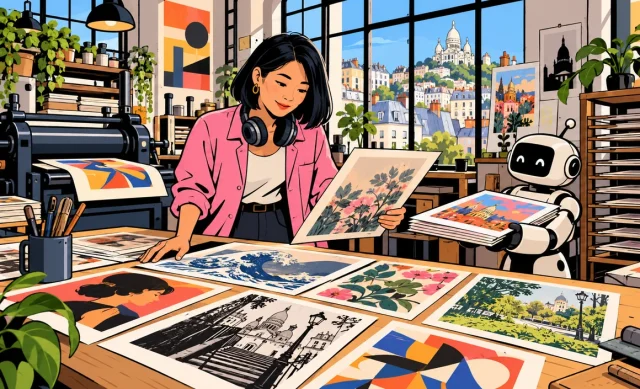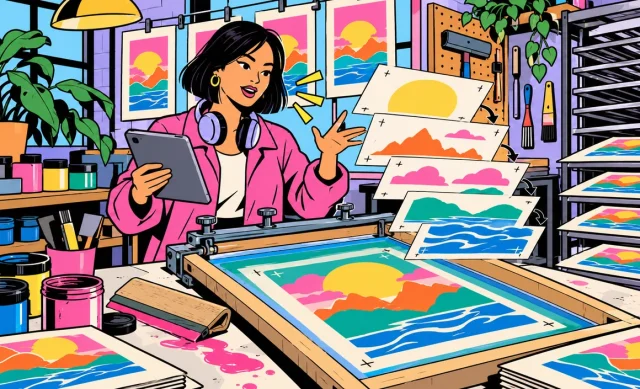
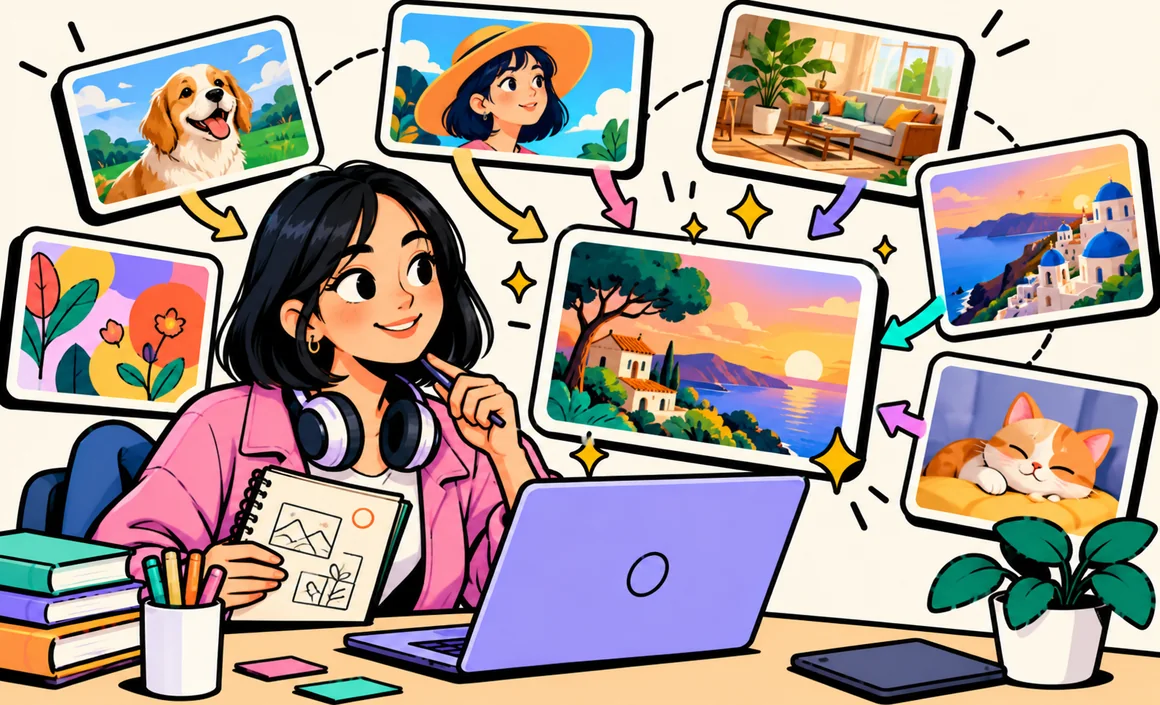
A poster for the school fair, an illustration for a blog post, a social media graphic, a personalized birthday card… ChatGPT can create images too, right in the chat, from a simple description in plain English.
The results can be stunning, or disappointing, depending on how you word your request. In this guide, I’ll show you how to create an image with ChatGPT, how to write an effective image prompt, how to edit a visual and which limits you should know about. You’ll also find about ten ready-to-copy prompt examples. If you’re just getting started, begin with my complete ChatGPT guide.
Key takeaways
- Just describe the image you want: ChatGPT generates it right in the chat, in anywhere from a few seconds to a few minutes.
- Image generation is available on the free version, with a limited number of images.
- A good image prompt spells out the subject, style, composition, colors and format.
- You can edit an image by describing the changes you want, and sometimes target a specific area.
- Make sure you have the rights to any image you upload, and be careful with real people, brands and copyrighted works.
Information checked on September 27, 2026.
Contents
How to create an image with ChatGPT
It’s really simple: you just ask. No software, no drawing skills and no complicated settings required.
- Open a new chat on chatgpt.com or in the app.
- Describe the image you want, starting with something like “Create an image of…” or “Generate an illustration…”.
- Wait a moment: depending on how complex it is, the image shows up in the chat within a few seconds to a few minutes.
- Ask for tweaks if needed, then download the image by clicking on it.
You can also open the tools menu in the message box and pick the image option, which points ChatGPT straight toward image generation. Depending on the interface on your account, you can find your creations in ChatGPT’s Images section.
Which plans include it?
Image generation works on every plan, including the free version. The difference is how many images you can make: it’s limited on the free plan and more generous on paid plans. When you hit the limit, ChatGPT tells you when you can try again. I go over these differences in my articles on free ChatGPT and ChatGPT Plus.
What’s new in ChatGPT Images 2.5
Since September 2026, ChatGPT Images 2.5 has improved editing precision and fine detail in particular. OpenAI also offers starter templates to save time, prompt sharing and, on mobile, the ability to turn a sketch into an image. If the early versions let you down, it’s a good excuse to give it another shot.
How to write a good image prompt
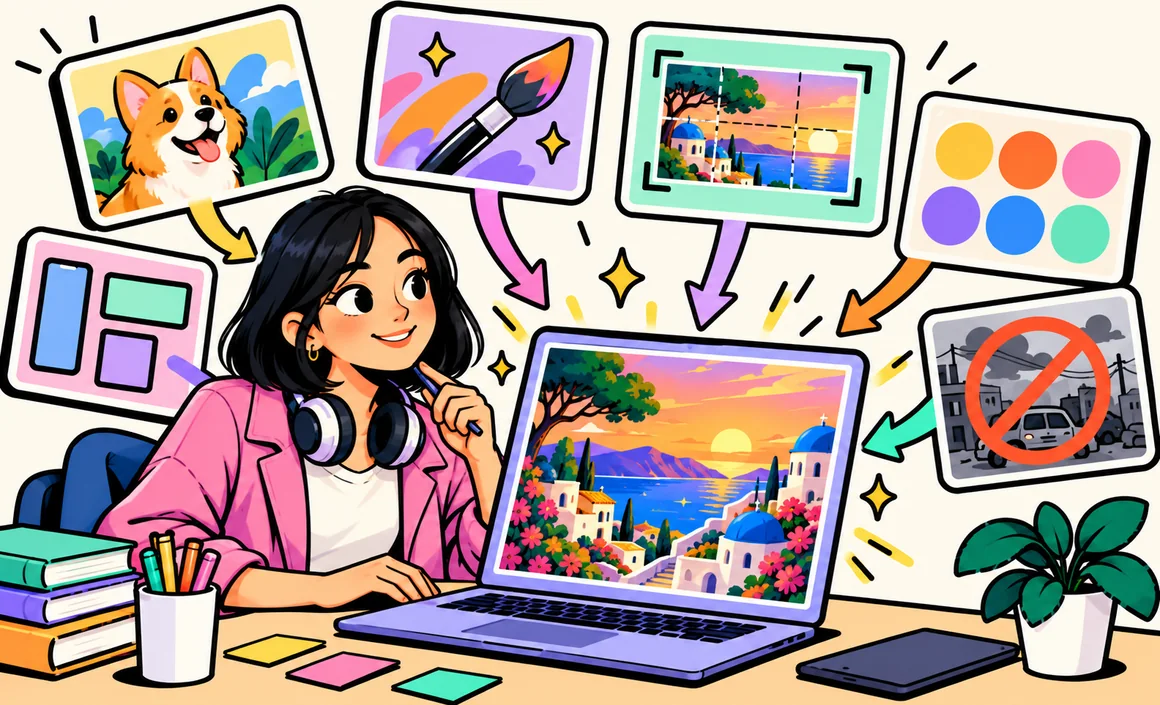
This is where it all happens. “Make me a picture of a cat” will get you a cat, but probably not the one you had in mind. The more precise your description, the closer the result will be to what you want. Here are the six elements I include in my requests.
1. The subject
Who or what? Be specific: “an orange cat sleeping on a stack of books” rather than “a cat.” Mention age, clothing, facial expression, what’s happening.
2. The style
This is often what changes the result the most: realistic photo, flat-color 2D illustration, watercolor, pencil drawing, comic book style, 3D render, retro ’60s poster… Name a clear style rather than a specific artist.
3. Composition and framing
Wide shot or close-up? Front view, side view, top-down? Subject centered, or off to the side to leave room for text? These details save you from starting over.
4. Colors and mood
Bright or pastel colors, morning light or nighttime, a cheerful or mysterious atmosphere. If you have brand guidelines, give the main colors.
5. The format
Square for Instagram, vertical for a story or a poster, horizontal for a blog post or a banner. Ask for it up front: cropping afterward often cuts off part of the image.
6. What to avoid
Say what you don’t want: no text, no logo, no people in the background, no busy background.
Here’s a complete example that brings all six elements together:
Create a 2D illustration with bold flat colors in a modern poster style: a smiling grandmother teaching a little boy how to make an apple pie in a bright kitchen. Medium shot, characters on the left to leave space on the right. Warm colors (orange, yellow, cream), cozy Sunday-afternoon mood. Horizontal format. No text, no logo.
To dig deeper into the general method, my article on how to write a good ChatGPT prompt applies the same principles to text.
How to edit an image made with ChatGPT
An image is rarely perfect on the first try, so you refine it. ChatGPT lets you adjust it without starting from scratch.
Ask for a change in the chat
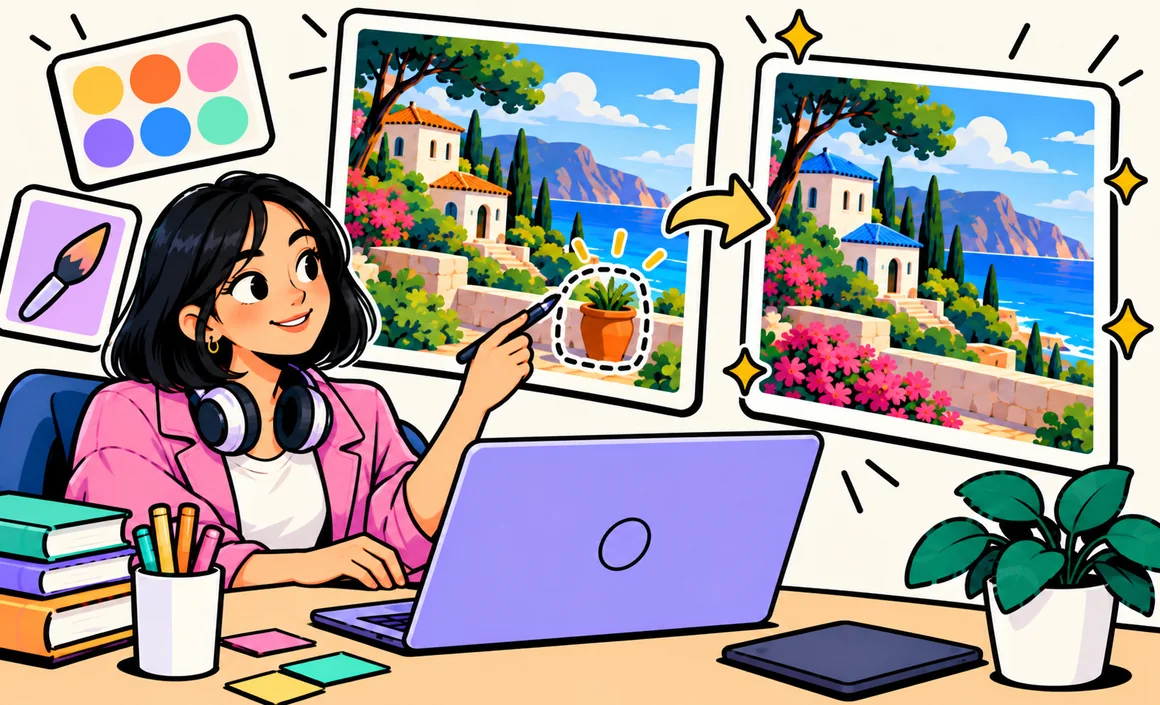
The easiest way: say what’s wrong. “Make the sky more orange,” “remove the mug on the table,” “make him smile,” “switch to vertical.” ChatGPT generates a new version based on your request.
Keep exactly the same scene and style, but change the grandmother's sweater to forest green and add an orange cat sleeping on a chair in the foreground.
My tip: ask for just one or two changes at a time. Pile ten changes into a single message and the result gets unpredictable, with other elements likely to shift.
Touch up a specific area
You can always describe the change you want and where it goes (“the mug in the bottom right”). Depending on your device and interface, editing or comment tools also let you target an area of the image more precisely. That’s perfect for fixing a detail (a badly drawn hand, an extra object) without touching the rest.
Start from an existing image
You can also upload your own image (a photo, a sketch, a logo you designed) and ask ChatGPT to transform it: change the style, add an element, turn it into a drawing, place it in a new scene.
Here's a sketch of the storefront for my future shop. Turn it into a colorful watercolor-style illustration, with people and bikes passing by out front, on a spring day.
Only upload images you have the rights to, and avoid photos of people who haven’t given their consent.
10 ready-to-copy image prompts
Here are prompts I’ve tested that work well. Customize the parts in brackets.
1. A blog post illustration
Create a modern 2D illustration with flat colors and thick black outlines showing [scene related to your post]. Horizontal 16:9 format, light background, no text.
2. An event poster
Create a vertical retro '70s-style poster for [event]: [description of the mood and visual elements]. Colors: [palette]. Leave a large empty space at the top so I can add the title myself.
3. A birthday card
Create a soft watercolor illustration for a birthday card: [the person's favorite animal or theme] surrounded by balloons and confetti, pastel colors, square format.
4. An Instagram post
Create a realistic photo, natural light, top-down view: [product or dish] on a light wood table, with a few props [list]. Square format, clean and warm feel.
5. A character for a children’s story
Create a children's book character: [description of the animal or character], soft rounded illustration style, bright colors, white background. Show it from the front, full body, with a happy expression.
6. A room layout
Create a perspective view of a 215 sq ft living room in Scandinavian style: light gray sofa, wooden coffee table, large green plant, wall shelf, morning light. Realistic 3D render.
7. An icon or pictogram
Create a simple flat icon representing [concept], minimalist pictogram style, two colors ([color 1] and [color 2]), transparent or white background, no text.
8. A before/after for a project
Create a two-part side-by-side image: on the left, [before]; on the right, [after]. Same viewpoint, same realistic style, identical lighting.
9. A presentation background
Create a background image for a professional presentation about [topic]: abstract geometric shapes, [company palette] colors, plenty of empty space in the center for text, 16:9 format.
10. A funny scene
Create a funny comic-book-style illustration: [specific funny situation]. Exaggerated expressions, bright colors, no text or speech bubbles.
Creating images with text
For a long time, image generators couldn’t spell to save their lives. ChatGPT’s current models do much better: they can add a short title to a poster, a name on a label or a simple slogan.
For best results:
- Put the exact text in quotation marks in your prompt.
- Keep it short: a few words work well, a paragraph much less so.
- Specify placement and style: “at the top, in big white letters.”
- Proofread carefully: a flipped letter or a missing character still happens.
For anything important (a flyer, an invitation), I often prefer to generate the image without text, then add the text myself in a design tool like Canva. It’s more reliable and easier to edit.
Limits and rules to know
Image generation in ChatGPT is powerful, but it comes with rules and it isn’t perfect.
- Real people: images of real people are subject to specific rules, especially around consent, deception, minors and certain sensitive content.
- Brands and copyrighted works: brands, protected characters and existing artworks can raise intellectual property issues, and some requests may be limited or reworded. For an original result, describe the visual features you want rather than a specific work.
- Sensitive content: violence, adult content and potentially misleading images are filtered.
- Details: hands, long text, complex objects or an exact number of items can still be tricky.
- Consistency across a series: keeping the exact same character from one image to the next takes some method (see my tips below).
- Provenance: images generated by OpenAI can include provenance information, such as C2PA metadata and other tracing signals. That’s good transparency practice.
Can you use the images commercially?
Under OpenAI’s terms of use, as between you and OpenAI and to the extent permitted by law, you own the image you generate. That doesn’t guarantee it’s unique or free of third-party rights, though: if the image copies a brand, a protected character or a real person’s face, you could run into trouble. For important professional use, reread the current terms and stick to original creations.
My tips for better images
Create a “character sheet”
If you need the same character across several images (for a blog, a story, a series of posts), write a precise description and reuse it word for word every time: age, hairstyle, clothes, colors. That’s exactly what I do for our illustration characters here at Prompty Lab.
Keep a consistent style
Also write a “style sentence” that you paste at the end of every prompt: type of illustration, outline thickness, color palette, background. Your visuals will have an instantly recognizable family resemblance.
Ask for several options
Before getting into the details, ask for different composition ideas:
Give me 3 different composition ideas for an illustration about [topic], each described in one sentence. I'll then pick which one to generate.
Let ChatGPT write the prompt
This one works really well: describe what you need in your own words, and ask ChatGPT to write the detailed image prompt itself. You can then review it, tweak it and run the generation.
I want an image to illustrate a post about [topic], for an audience of [description], with a [mood] feel. Write the most precise image prompt you can (subject, style, composition, colors, format, things to avoid), then generate the image.
FAQ
Is creating images with ChatGPT free?
Yes, image generation is available on the free version, with a limited number of images. Paid plans offer higher limits.
What format are the images in?
Images are generated in square, portrait or landscape, depending on what you ask for. You can download them from ChatGPT; the file format offered may vary depending on the interface and the type of image.
Can ChatGPT edit a photo I upload?
Yes. You can upload an image and ask it to transform it, change its style or add elements. Make sure you have the rights to the image and the consent of anyone in it.
Why does ChatGPT refuse some images?
For safety and rights reasons: some requests involving real people, brands, copyrighted works, or violent or misleading content are restricted. Reword your request to describe an original creation.
How do I get the same character in several images?
Use the same detailed description every time, stay in the same chat when you can, and explicitly ask it to keep the same character and style.
Is ChatGPT the best tool for creating images?
It’s one of the easiest, since everything happens in a conversation, in plain English. Other tools like Midjourney, Canva or Gemini have their own strengths; I’ll cover them in upcoming articles.
The bottom line
Anyone can create an image with ChatGPT: you just describe what you want. For truly great results, spell out the subject, style, composition, colors and format, then fine-tune one small change at a time.
Want to go further? Learn how to write a good ChatGPT prompt and how to use ChatGPT memory so it remembers your style preferences.