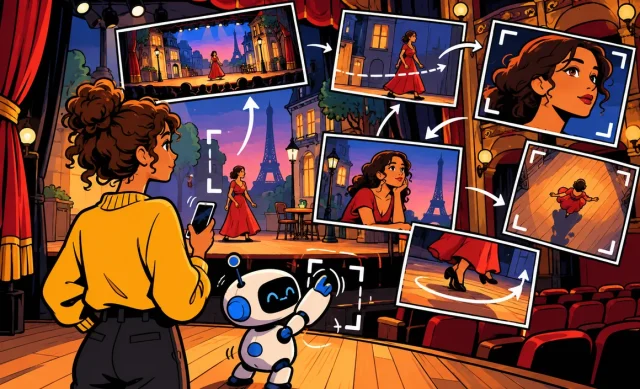

A drone shot over a forest at sunrise, a family photo that comes to life, a short animation to introduce your nonprofit, a clip for social media: AI video generators now let you create all of this from a simple written description or an image. No camera, no complicated editing software, no film crew needed to get a few seconds of moving footage.
But the landscape has shifted a lot in 2026. Some tools have shut down, others have changed their plans and models. In this comparison, I’ll walk you through the best AI video generators to try in 2026, with their strengths, limits and official pricing, then give you a simple method and ready-to-copy prompts to nail your first videos. If you’re a complete beginner, start with my guide to making a video with AI.
The short version
- Runway is the most complete AI video tool, with a free version that gives you 125 one-time credits.
- Adobe Firefly is aimed at creators who already work with Adobe software.
- Canva is the easiest way to drop an AI video into an edit, a post or a presentation.
- Google Flow is included with expanded access in the Google AI Plus and Pro plans.
- Sora, OpenAI’s video tool, has shut down: the app closed on April 26, 2026 and the API on September 24, 2026.
Information checked on September 29, 2026.
Contents
How does an AI video generator work?
An AI video generator works like an image generator, but adds motion and duration. You give it a prompt, and it produces a short clip a few seconds long. There are two main ways to use it.
- Text to video: you describe the scene in words (“a fishing boat coming back to harbor in the rain, wide shot”) and the tool creates the video from scratch.
- Image to video: you start from an existing image (a photo, an AI-generated illustration) and ask the tool to animate it. This is often the most reliable method, because the image already sets the style, colors and composition.
Almost all of these tools run on credits: each generation uses a certain number of credits, depending on the model you pick and the clip length. That’s key when comparing plans, because a video eats up far more than an image.
For your starting visuals, I recommend my guide to creating an image with AI: a good starting image often makes a good video.
The best AI video generators in 2026
Runway: the most complete tool
In my opinion, Runway is the current benchmark if you really want to explore AI video. It offers text-to-video and image-to-video, its own Gen-4.5 model, access to third-party models, and a video editing tool called Aleph.
Free version: the free account gives you 125 one-time credits that don’t renew, a limited selection of models, and a watermark on your videos. That’s enough to explore the tool, not to create on a regular basis.
Credit usage: with Gen-4.5, expect 12 credits per second of video, with 5- or 10-second clips depending on the generation. In practice, a 10-second video uses 120 credits: so the 125 free credits barely cover one try at that length.
Paid plans:
- Standard: $15 a month (or $12 a month billed yearly), 625 credits.
- Pro: $35 a month (or $28 a month billed yearly), 2,250 credits.
- Max: $95 a month (or $76 a month billed yearly), 9,500 credits.
Commercial use: according to its terms, Runway doesn’t claim ownership of your content and doesn’t restrict commercial use of generated videos, as long as you follow its terms of use. The service is open from age 13, with permission from a parent or guardian under 18 where required.
What changed at Runway in 2026
If you’ve read older comparisons, several details are now out of date:
- The Unlimited plan is being phased out in favor of Max, launched on June 1, 2026. Existing Unlimited subscribers keep their plan until November 30, 2026.
- The older Gen-3 Alpha (retired July 8, 2026) and Gen-3 Alpha Turbo (retired July 30, 2026) models are no longer available. Runway now points users to Gen-4.5 and Aleph 2.0.
The main takeaway: if a tutorial mentions Gen-3 or the Unlimited plan, it’s no longer up to date.
Adobe Firefly: for Adobe regulars
Adobe Firefly brings video generation into the Adobe ecosystem. It’s a natural choice if you already use Photoshop, Premiere or Express, and want to stay in a professional environment.
Free version: a few free generations per day, with varying limits.
Paid plans (monthly price):
- Firefly Standard: $9.99 a month, 2,000 credits, or up to 20 five-second videos.
- Firefly Pro: $19.99 a month, 4,000 credits, or up to 40 five-second videos.
- Firefly Pro Plus: $49.99 a month, 10,000 credits, or up to 100 five-second videos.
- Firefly Premium: $199.99 a month, with unlimited Firefly Video in a dedicated module.
My take: Firefly makes sense for regular professional use, but the entry plans are still limited in how many videos you get. Do the math based on what you need.
Canva: the easiest for editing and posting
Canva isn’t a dedicated video generator, but it’s probably the most practical tool for everyday use. The appeal: you generate a clip, then drop it straight into an edit, a social media post, a presentation or a story, with text, music and your brand kit.
- AI video and image to video are part of the Premium tier.
- High-quality clips are offered on an Ultra tier.
- The free account allows up to 20 Standard or Premium AI uses, depending on usage.
- Canva Pro costs $15 a month or $180 a year, and Canva Pro+ $20 per person per month.
To discover all its features, read my Canva AI guide.
Google Flow: the Google ecosystem option
Google offers Flow, a video creation tool built into the Gemini and Google AI ecosystem. It’s included with expanded access in the paid plans:
- Google AI Plus: $9.99 a month, with expanded Flow access.
- Google AI Pro: $19.99 a month, with expanded Flow access and Gemini limits four times higher than without a plan.
Heads-up: in the US, Google AI plans require you to be at least 13, and some features require 18. If you’re already paying for a Google AI plan for Gemini, Flow is a good reason to get the most out of it.
What about Sora?
You’ll still find plenty of articles presenting Sora, OpenAI’s video tool, as a top pick. But it has shut down: the app and website stopped working on April 26, 2026, and the API on September 24, 2026. So I’ve removed it from this comparison.
AI video generator comparison table
| Tool | Free version | Entry plan | Strength | Best for |
|---|---|---|---|---|
| Runway | 125 one-time credits, watermark | Standard $15/month, 625 credits | Most complete (Gen-4.5, Aleph) | Creators who want to explore |
| Adobe Firefly | A few generations per day | Standard $9.99 a month, up to 20 five-second videos | Adobe integration | Visual professionals |
| Canva | Up to 20 AI uses | Pro $15 a month or $180 a year | Easy editing and posting | Social media, nonprofits, small businesses |
| Google Flow | Not specified here | Google AI Plus from $9.99/month | Gemini ecosystem | Google AI subscribers (13+, some features 18+) |
| Sora | Shut down | Shut down | – | – |
Which generator should you pick for your needs?
Here are my recommendations, which are personal opinions to adapt to your situation:
- You just want to try it: open a free Runway account for a first test, or use Firefly’s daily generations.
- You post on social media: Canva, to do everything in one place, from generation to posting.
- You already work with Adobe: Firefly, to stay in your usual tools.
- You already have a Google AI plan: try Flow before paying for another subscription.
- You want to go deep into creating: Runway Pro, for its credit volume and editing tools.
Here’s an example: Sarah runs the Facebook page for a small independent bookstore. She doesn’t need cinematic videos, just short animations to slip into her posts with the title of the book of the month. For her, Canva is the most logical choice, in my opinion. On the other hand, Marcus makes amateur music videos: he’ll love Runway’s creative freedom.
For a broader look at assistants, also check out my article on which AI to choose.
Step by step: creating your first AI video
- Define your goal: what format (vertical for stories, horizontal for YouTube), what length, what message?
- Prepare a starting image if you can: create one with an image generator or use a photo you have the rights to.
- Write a precise prompt: subject, action, camera movement, mood, lighting.
- Start short: a 5-second clip uses fewer credits than a 10-second one. Validate the idea before going longer.
- Generate several variations and keep the best one.
- Adjust one thing at a time: the movement, then the lighting, then the pacing.
- Edit and finish: add text, music and voice in an editing tool like Canva.
- Check rights and AI disclosure before posting.
Ready-to-copy prompts
The structure that works best, in my experience: subject + action + camera + mood + style. Here are some examples to adapt.
For a landscape shot:
Wide shot of a mountain lake at sunrise, light mist over the water, the camera slowly moves toward the lake, golden light, realistic look, calm mood.
To animate a photo (image to video):
Animate this photo: the tree leaves sway gently in the wind, the clouds drift slowly, the camera stays still, natural and subtle movement.
For a local business post:
Close-up of a steaming cup of coffee on a wooden counter, steam rising slowly, warm morning light, gentle rack focus, elegant ad style, vertical format.
For an illustrated animation:
Colorful 2D illustration of a fox walking through an autumn forest, leaves falling around it, side tracking shot following the fox, children's book style.
For a cinematic mood:
Cobblestone street at night in the rain, neon reflections on the wet pavement, a figure with an umbrella crosses the frame, static camera, film noir mood, blue and orange tones.
Tip: if you’re short on ideas, ask an assistant to write your prompts. For example, with ChatGPT (see my ChatGPT guide):
Give me 5 short prompts for an AI video generator to showcase a small-town bakery. For each prompt, specify the subject, camera movement, lighting and mood. Vertical format, 5-second clips.
Checklist before posting your video
- The video doesn’t show any identifiable real person without their consent.
- No brand, logo or copyrighted work is reproduced.
- You’ve reread the commercial use terms of the tool you used.
- The free version’s watermark is fine for your use, or you’ve upgraded to a paid plan.
- You disclose that the video was generated or edited with AI when relevant.
- The format matches the platform you’re posting on.
Mistakes to avoid and limits
- Trusting an old comparison: Sora is shut down, Gen-3 is retired, Unlimited is giving way to Max. Always check the date of the information.
- Underestimating credit usage: video is expensive in credits. With Runway Gen-4.5, one second uses 12 credits.
- Writing a prompt that’s too vague: “a nice beach video” gets you something generic. Spell out the movement, lighting and mood.
- Asking for too many actions in one clip: a few seconds isn’t enough to tell a whole story. Break it into several shots.
- Expecting perfection: hands, on-screen text and complex movements are often still imperfect. Add text during editing instead.
- Forgetting ethics: never create a fake video of a real person, and don’t pass off a generated video as real footage.
FAQ
Can you create AI videos for free?
Yes, up to a point. Runway gives 125 one-time credits, with a watermark. Firefly offers a few free generations per day, and Canva up to 20 AI uses on its free account. For regular use, a paid plan quickly becomes necessary.
What’s the best AI video generator?
There’s no single answer. In my view, Runway is the most complete, Canva the easiest for posting, Firefly the best fit for Adobe regulars, and Flow the most logical if you already have a Google AI plan.
Is Sora still available?
No. The Sora app shut down on April 26, 2026 and its API on September 24, 2026. Tutorials that feature it are outdated.
Can you use AI videos commercially?
It depends on the tool and the plan. Runway doesn’t restrict commercial use of generated videos, provided you follow its terms. For other tools, reread the terms before any commercial use.
How long is a generated video?
Usually a few seconds per clip. With Runway Gen-4.5, for example, generations last 5 or 10 seconds. For a longer video, you put several clips together in editing.
Do you need a powerful computer?
No. All the tools covered here run online: the processing happens on the company’s servers. A recent browser and a good connection are all you need.
The bottom line
To create videos with AI in 2026, try Runway for creativity, Canva for simplicity, Firefly if you live in the Adobe world, and Flow if you have a Google AI plan. Forget Sora, which has shut down, and be wary of guides that still mention Gen-3 or the Unlimited plan. Start with short clips, write precise prompts, and always check rights before posting.
To go further, check out the best free AI tools.