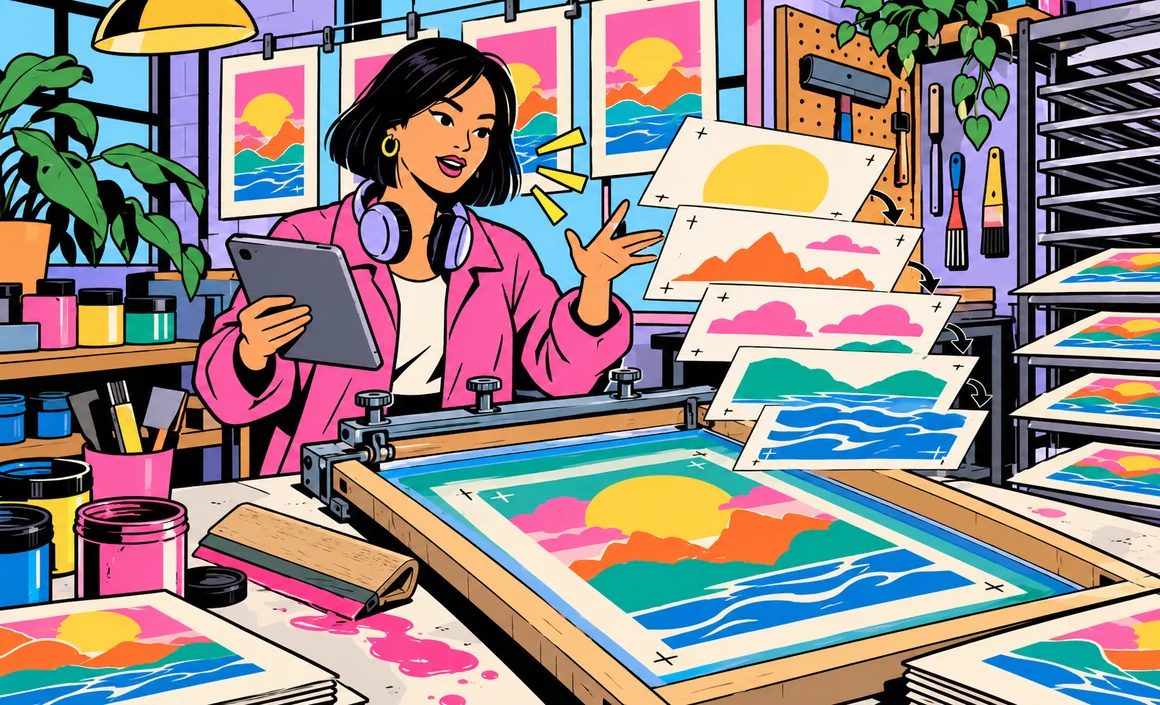
A poster for the school fair, an illustration for a blog post, a one-of-a-kind birthday card, a social media graphic, a touched-up product photo: creating an image with artificial intelligence is now within everyone’s reach, no drawing skills or design software required. You just describe what you want, in your own words, the way you’d explain it to an illustrator. The result shows up in seconds, and you can tweak it as many times as you need.
But between dozens of tools, free and paid versions, and rules to follow, it’s easy to get lost. In this beginner’s guide, I explain which tools to use, how to write a good description, how to edit an image, and which rules to follow (real people, copyright, commercial use). If you already use ChatGPT, my guide to creating images with ChatGPT goes even further.
Key takeaways
- To get started, the easiest options are assistants that create images right in the chat: ChatGPT, Gemini and Copilot, all usable for free with limits.
- Canva is ideal for turning an image into a poster or social post with text.
- Midjourney and Adobe Firefly are geared toward more creative or professional use.
- A good description spells out the subject, style, framing, colors and format.
- Some tools add provenance information, such as Content Credentials (C2PA) or SynthID.
Information checked on September 29, 2026.
Contents
- How does AI image generation work?
- Which tool should you start with?
- How to write a good image description
- Editing and improving an image
- 8 image ideas to try
- Step by step: my first image in five minutes
- Keeping the same style or character
- Which tool for which use?
- What AI still struggles with
- The rules to follow
- Beginner mistakes
- FAQ
- The bottom line
How does AI image generation work?
Image generators are AI models trained on huge amounts of images and descriptions. When you type “a ginger cat sleeping on a stack of books, watercolor style,” the model produces a brand-new image that matches that description.
You don’t need any technical skills. What makes the difference is the quality of your description, called the prompt. That’s what we’ll dig into here.
Which tool should you start with?
Chat assistants: the easiest option
ChatGPT, Gemini and Copilot create images right in the conversation. You describe it, the image appears, and you ask for changes in plain English (“make the sky more orange,” “add a dog in the foreground”). All three offer image creation on their free plans, with a limited number of generations that goes up on paid plans.
- ChatGPT: image creation and editing in the chat, with tools to target a specific area depending on the interface. See my guide to creating images with ChatGPT.
- Gemini: image creation with the Nano Banana 2 model for free, and Nano Banana Pro on paid plans. In the US, you need to be 13 to create images with your own Google account, and 18 to edit them. See my guide to free Gemini.
- Copilot: image creation and editing, with higher limits for Microsoft 365 subscribers. See my guide to Microsoft Copilot.
Note: Claude, Anthropic’s assistant, doesn’t generate illustrations.
Canva: for graphics with text
Canva is an online design tool with built-in AI features: image generation, editing, removing or adding backgrounds. Some features are free with limited AI credits. Its real strength: turning an image into a poster, invitation, social post or presentation, with nicely placed text.
Midjourney: for an artistic look
Midjourney is one of the original big names in AI image generation, known for the aesthetics of its results. There’s no free version: you need a subscription to use it.
Adobe Firefly: for professional use
Built into the Adobe ecosystem, Firefly lets you generate and edit images, including inside software like Photoshop, with particular attention to usage rights. It’s mainly aimed at imaging professionals.
How to write a good image description
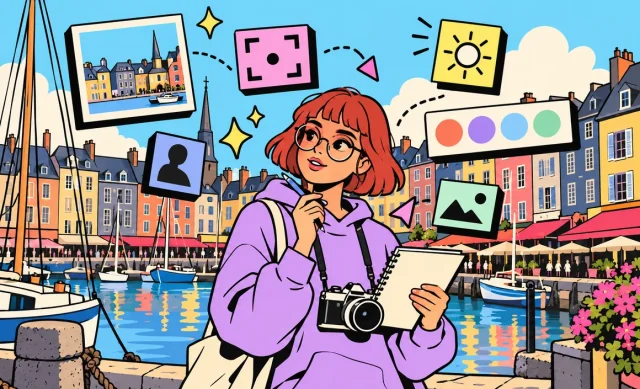
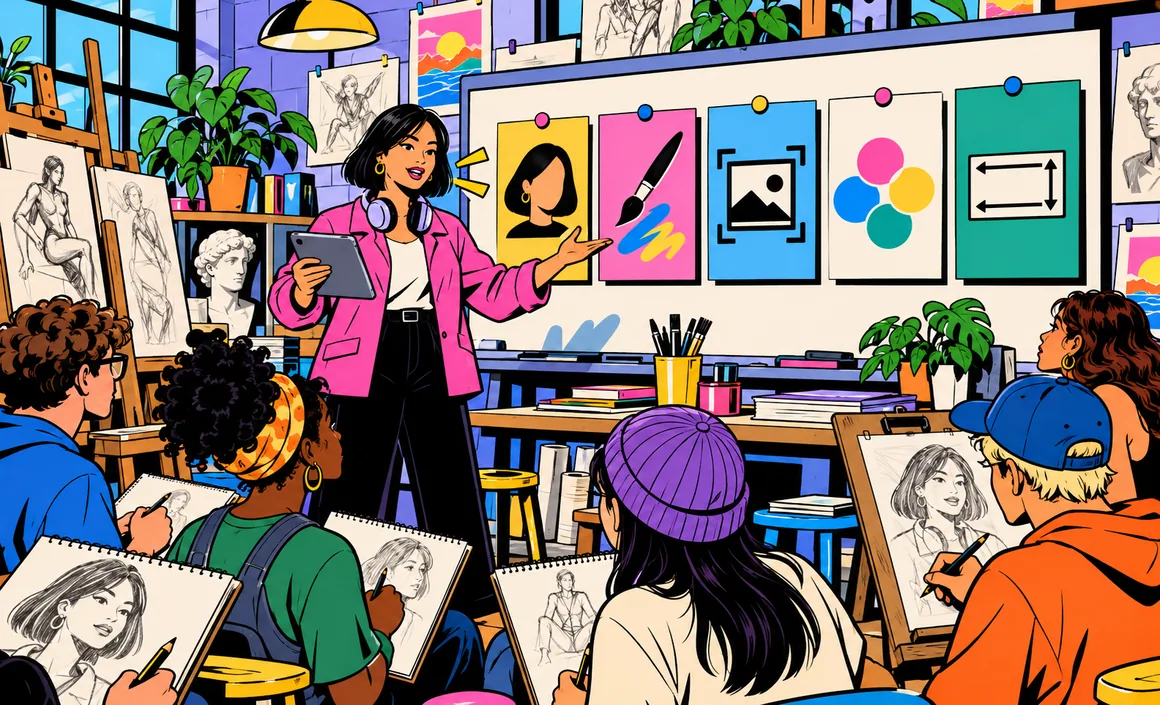
An effective description has five ingredients. The more specific you are, the closer the result is to what you had in mind.
1. The subject
Who or what, doing what? “A grandmother teaching her grandson to bake an apple pie” rather than “a grandmother.”
2. The style
This is often what changes the result the most: realistic photo, 2D illustration, watercolor, pencil drawing, comic book, 3D render, retro poster. Name a clear style rather than a specific artist.
3. The framing
Wide shot or close-up, front view, top-down, profile, subject on the left to leave room for text.
4. Colors and mood
Bright or pastel colors, morning or evening light, a cheerful, calm or mysterious mood.
5. The format
Square for Instagram, vertical for a poster or a story, horizontal for an article or a banner.
Here’s a complete example:
Create a brightly colored 2D illustration in a modern poster style: a smiling grandmother teaching her grandson to bake an apple pie in a sunny kitchen. Medium shot, characters on the left to leave space on the right. Warm colors, a lazy Sunday afternoon feel. Horizontal format, no text.
Editing and improving an image
The first image is rarely perfect. Here’s how to make it better:
- Ask for one or two changes at a time: “change the sweater color,” “remove the mug.” Too many changes at once make the result unpredictable.
- Say what should stay the same: “keep exactly the same scene and style.”
- Use selection tools when they’re available, to change just one area.
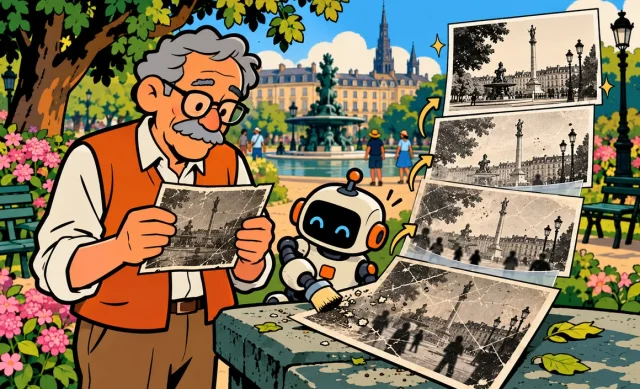
- Start from one of your photos: upload it and ask to change the style or background, or add something, as long as you have the rights to the photo.
8 image ideas to try
- A birthday card personalized with the person’s favorite animal.
- A poster for a community event, with blank space for text.
- An illustration for a blog post or presentation.
- A social media graphic in square format.
- A character for a story you make up with your kids.
- A decor mockup: your living room with a different couch.
- A simple icon for a document or website.
- A custom wallpaper for your phone.
Create a soft watercolor-style illustration for a birthday card: a ginger cat surrounded by balloons and confetti, pastel colors, square format, no text.
Step by step: my first image in five minutes
For anyone who’s never tried, here’s a complete example, from the first message to the final image, using a free assistant.
Step 1: describe the idea. I want an illustration for a neighborhood block party invitation. I type: “Create a cheerful illustration of neighbors sharing a meal in a courtyard full of flowers, in summer, 2D illustration style with bright colors, horizontal format, no text.”
Step 2: look at the result. The image is nice, but the people are too small and there are no kids.
Step 3: fix it in small steps. “Keep the same scene and style, but zoom in on the table and add two kids playing in the foreground.”
Step 4: adjust a detail. “Replace the white tablecloth with a red checkered one.”
Step 5: finish up. I download the image, then open it in a tool like Canva to add the date, time and place of the party in an easy-to-read font.
In five minutes, I have a custom invitation I could never have drawn myself.
Keeping the same style or character
If you need several consistent images (a series of posts, an illustrated story, blog graphics), two tricks make all the difference:
- A character sheet: describe your character precisely (age, hairstyle, clothes, colors) and paste the exact same description for every new image.
- A style sentence: define your style once and for all (type of illustration, line weight, palette, background) and add it to the end of every request.
Also stay in the same conversation when you can, and explicitly ask it to keep the same character and style. That’s exactly the method I use for the illustrations on this blog.
Which tool for which use?
| Use | Recommended tool for beginners | Tip |
|---|---|---|
| Quick illustration | ChatGPT or Gemini | Describe the style and format from the start |
| Poster or invitation with text | Assistant, then Canva | Generate the image without text, add the text in Canva |
| Social media graphic | ChatGPT, Gemini or Canva | Square or vertical format, not too much detail |
| Polished artistic look | Midjourney | Subscription required |
| Professional photo editing | Adobe Firefly | Best for Adobe users |
| Editing a personal photo | Assistant or your phone’s photo app | Make sure you have the rights to the photo |
What AI still struggles with
Image generators are improving fast, but some things are still tricky:
- long text in the image, with letters that sometimes come out warped;
- hands and anatomical details, although this is less and less common;
- exact numbers of objects or people;
- perfect consistency of a character from one image to the next;
- very complex scenes with lots of people interacting.
In those cases, work in steps, simplify the scene, or finish the job in an editing tool. And always look over an image carefully before publishing it: a weird detail is easy to miss.
The rules to follow
This is the most important part of this guide. Creating an image is easy; using it the right way takes a few precautions.
Real people
Avoid creating realistic images of real people, especially without their consent, and never use a generated image to deceive or cause harm. The tools apply specific rules, especially around consent, minors and sensitive content, and may refuse some requests.
Copyright and trademarks
Logos, copyrighted characters and existing artworks can raise intellectual property issues. For an original, risk-free result, describe the visual features you want rather than copying a specific work or character.
Commercial use
Commercial use terms vary by tool, and sometimes by plan or the content used. For professional use (advertising, a product you sell, a company logo), reread the terms of use for the tool and your plan before using the image.
Labeling AI images
Some tools add provenance information to generated images: C2PA metadata (Content Credentials) from several companies, or an invisible watermark like Google’s SynthID. These markers can show that an image was generated or edited by AI, when they’re present and detectable; their absence doesn’t prove an image is authentic. It’s good transparency practice: don’t try to remove them, and clearly label a generated image when the context calls for it.
Minimum age
Each service has its own age requirements. For example, in the US, Gemini lets you create images from age 13 with your own Google account, and edit them from age 18.
Beginner mistakes
- A description that’s too vague: “a landscape” gives you a bland image; specify the place, season, light and style.
- Too much text in the image: generators handle a few short words better than a paragraph; add the text afterward in Canva instead.
- Changing everything at once: make small edits.
- Forgetting the format at the start: cropping later cuts off part of the image.
- Ignoring the rules: real people, trademarks and commercial use.
FAQ
Can you create images with AI for free?
Yes, with ChatGPT, Gemini, Copilot or Canva, within a limited number of generations or credits. Midjourney requires a subscription.
What’s the best tool for beginners?
A chat assistant like ChatGPT or Gemini, because you just describe the image you want in plain English.
Are AI-generated images royalty-free?
It depends on the tool and the plan. Read the terms of use, especially for commercial use, and avoid reproducing trademarks, artworks or real people.
How can you tell if an image was made by AI?
Some generated images contain provenance information (C2PA) or an invisible watermark (SynthID) that verification tools can read. But their absence proves nothing: stay cautious.
Can you edit your own photos with AI?
Yes, several of the tools covered here let you upload a photo and edit it, as long as you have the rights to the image and the consent of the people in it.
How long does it take to create an image?
Anywhere from a few seconds to a few minutes, depending on the tool and how complex the request is. Then plan on a few back-and-forths to fine-tune the details: that’s often where the image really becomes yours.
Do you need a powerful computer?
No. The tools covered here run online: a browser or a phone app is all you need.
The bottom line
To create an image with AI, start with an assistant like ChatGPT or Gemini, write a precise description (subject, style, framing, colors, format), edit in small steps, and follow the rules on real people, rights and commercial use. Canva will then help you turn your images into finished designs.
To go further, check out the best free AI tools and how to write a good prompt.