

A 60-page report to read by tomorrow, a contract full of legalese, class notes to review, a user manual that makes no sense… ChatGPT can analyze your PDFs and help you pull out what matters in just a few minutes.
In this tutorial, I’ll show you how to upload a PDF to ChatGPT and the best ways to summarize it, analyze it and ask it questions, with copy-and-paste prompts, plus the precautions to take so you don’t get fooled.
Quick answer
- Click “+” in the message box, pick your PDF, then ask your question.
- Works on the free plan, with a limited number of uploads.
- Maximum size: 512 MB per file, up to roughly 2 million tokens of text.
- Password-protected PDFs aren’t supported.
- Always ask for the page or passage that backs up an important answer.
Information checked on September 25, 2026.
Contents
- How to upload a PDF to ChatGPT
- Summarize a PDF
- Ask questions about the content
- Analyze and extract information
- Study for a class or learn from a PDF
- Limits you should know about
- My 4 tips for reliable results
- Real-life use cases, document by document
- Mistakes to avoid with PDFs
- What if your PDF is too big or isn't read properly?
- My 5-step method for analyzing a long document
- ChatGPT or a PDF reader with built-in AI?
- 10 copy-and-paste prompts for your PDFs
- What comes after the analysis?
- FAQ
- The bottom line
How to upload a PDF to ChatGPT
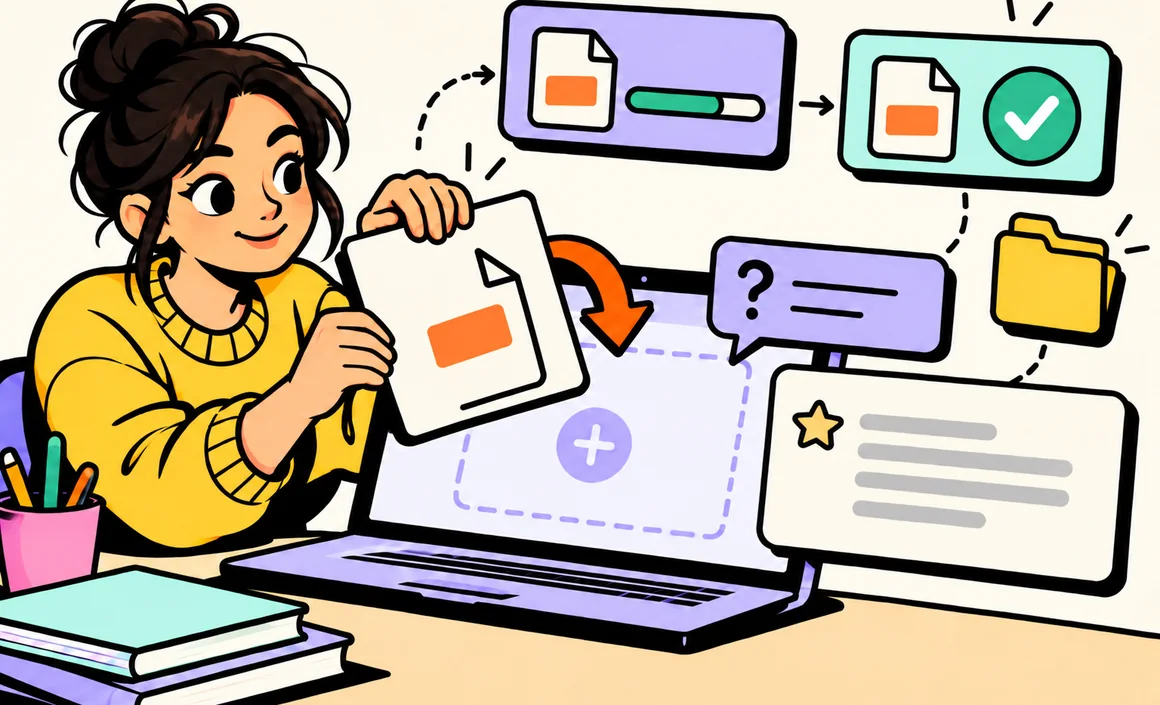
- Open chatgpt.com or the ChatGPT app and start a new chat.
- Click the “+” button to the left of the message box (or just drag the file into the window).
- Select your PDF from your computer, your phone or a cloud storage service, if you’ve connected one.
- Wait for the upload to finish, then type your request in the same message.
Depending on the features available on your account, the file may then show up in your ChatGPT Library, so you can reuse it later without uploading it again.
Summarize a PDF
This is the most common use. The classic mistake is to simply type “summarize this PDF”: you’ll get a generic summary. Instead, spell out the length, the audience and what you actually care about.
Summarize this document in 10 key points, in plain language. For each point, tell me which page it's on. End with the 3 things I absolutely need to remember.
For a very long document, go step by step: first ask for a detailed outline, then a chapter-by-chapter summary.
First, give me a detailed outline of this document, with the page numbers for each section. I'll then tell you which sections to summarize in detail.
Ask questions about the content
Once the PDF is uploaded, you can question it the way you would someone who read it carefully. It’s especially handy for tracking down a specific detail in a long document.
Based on this contract, what are the conditions for ending it early? Quote the exact passage and give me the page number. If the information isn't in the document, say so clearly.
That last sentence matters: it reduces the risk of ChatGPT “making up” a plausible answer when the information simply isn’t in the document.
Analyze and extract information
ChatGPT can also turn a PDF into usable data: pull out numbers, spot dates, list obligations or compare sections.
Pull every key figure from this report (amounts, percentages, dates) and put them in a table with three columns: item, value, page.
Here are two quotes in PDF format. Compare them in a table: total price, what's included, timelines, warranties and payment terms. Flag any important differences.
Study for a class or learn from a PDF
Students, this is one of the most effective uses: turning course material into study tools.
Using these class notes, create a one-page study guide, then a 10-question multiple-choice quiz. Only give me the answers after I've responded.

Limits you should know about
- Size: 512 MB max per file and roughly 2 million tokens of text. There’s no published page limit, but a very large document may be handled less accurately.
- Number of uploads: limited on the free plan, higher with ChatGPT Plus.
- Protected PDFs: a password-locked file can’t be read. Remove the protection before uploading.
- Scanned PDFs: ChatGPT can sometimes work with scanned pages, but the quality of the document has a big impact on the result. A blurry or handwritten document will give less reliable results.
- Complex tables and charts: they’re usually understood well, but always double-check the numbers it pulls out.
Be careful with confidential documents. Avoid uploading pay stubs, ID documents, health records or sensitive company files. If you do, turn off the use of your data for model training in Settings → Data controls, or use a temporary chat.
My 4 tips for reliable results
- Insist on page numbers so you can check every important piece of information.
- Tell it to answer only from the document and to say when the information isn’t there.
- For in-depth analysis, ideally keep one conversation per project or topic: the answers stay more accurate.
- Reread the key passages yourself before making any decision (legal, financial, medical).
Real-life use cases, document by document
Each type of document calls for a different way of working. Here are the most common situations, with the right approach and prompt for each.
A contract or terms and conditions
Leases, insurance policies, employment contracts, subscription terms: these are long documents written in legal language, where the important details are often scattered around. ChatGPT is really useful for a first read and for spotting what to watch out for.
Here's my homeowners insurance policy. List in a table: the coverage included, the main exclusions, the deductibles, the deadlines for filing a claim and the cancellation terms. Give the page for each row. Then point out the 3 clauses that deserve my attention the most.
This analysis doesn’t replace a professional’s advice for a big decision, but it lets you show up to an appointment with the right questions.
A work report or a study
For an annual report, a market study or a technical report, the goal is usually to get the gist fast so you can make a decision or discuss it in a meeting.
I have to present this report to my team in 5 minutes tomorrow. Prepare: a 5-sentence summary, the 3 most striking figures with their page, the 2 main recommendations, and one question the team is likely to ask me, with a suggested answer.
A user manual or instructions
80-page manuals in several languages are often discouraging. Upload the PDF and ask your question directly: ChatGPT finds the right section and explains it simply.
According to this manual, how do I set a delayed start on this dishwasher? Give me numbered steps, in order, and the page of the manual.
Statements or bills
To analyze your energy spending or check a bill, ChatGPT can pull out the amounts and compare them. Remember to hide your contact details and account numbers before uploading.
Here are my last 3 electric bills. Show in a table the usage, the price per kWh, the fixed service charge and the total amount of each bill. Then tell me how my usage has changed and what explains the difference in the amount.
A document in a foreign language
ChatGPT can summarize or translate a PDF written in another language. For a long document, first ask for a summary in English, then a translation of only the passages you care about: it’s faster and more accurate than translating the whole thing.
Mistakes to avoid with PDFs
- Assuming ChatGPT read everything perfectly. In a very long document, some passages may get less attention. For any key detail, always ask for the exact quote and the page.
- Asking a question that’s too vague. “What do you think?” gets you a general answer. “What are the financial risks for me in this contract?” gets you a useful one.
- Mixing topics in the same conversation. If you jump from a contract to a bill to class notes, ChatGPT may mix up the documents.
- Uploading an unreadable scan. If you can barely read the document yourself, so can ChatGPT. Rescan it at a better quality.
- Forgetting about sensitive data. A PDF often contains more personal information than you’d think: your address, customer number, signature.
What if your PDF is too big or isn’t read properly?
If the upload fails or the answers seem off, you have several options:
- Split the document into several shorter PDFs (by chapter, for example) with a PDF splitting tool.
- Compress the file if it contains lots of heavy images.
- Copy and paste the text of the pages you need straight into the chat, if the PDF allows it.
- Remove the password protection with the software that created the document, if you’re allowed to.
- Rescan it in high resolution, flat and well lit, for a paper document.
My 5-step method for analyzing a long document
For a truly important document, here’s the method I use every time. It takes a few extra minutes, but it greatly cuts down on mistakes.
- Big picture: I ask for a detailed outline with page numbers.
- Goal: I explain why I’m reading this document and what I need to decide.
- Extraction: I ask for the information relevant to my decision, with quotes and pages.
- Verification: I open the PDF to the pages it gave me and check the key passages.
- Summary: I ask for a final, decision-focused summary with the red flags.
I need to decide whether to sign this document. Based only on its content, write a half-page summary: what I'm committing to, what the other party is committing to, the costs, the deadlines, the risks and the points I could negotiate. Give the page for each point.
ChatGPT or a PDF reader with built-in AI?
Many PDF readers now come with their own AI assistant. They’re convenient for a quick question without leaving the document. ChatGPT is still more versatile, though: you can cross-reference several documents, turn the result into an email, a table or a presentation, and keep working in the same conversation.
For a one-off question, your PDF reader’s assistant may be enough. For real analysis work, ChatGPT (or another general-purpose assistant) gives you more flexibility.
10 copy-and-paste prompts for your PDFs
To save time, here’s a set of prompts to keep handy. Just replace the parts in brackets.
- Quick summary: “Summarize this document in 5 simple sentences for someone who only has two minutes.”
- Outline: “Give me a detailed outline of this document with page numbers.”
- Key figures: “Pull all the important numbers into a table: item, value, page.”
- Dates and deadlines: “List every date, time frame and deadline mentioned, in chronological order.”
- Obligations: “What are my obligations according to this document? Quote each passage and its page.”
- Red flags: “Which passages should be reread carefully before signing, and why?”
- Simple explanation: “Explain the section [title or page] to me like I’m 15.”
- Glossary: “Create a glossary of the technical terms in this document with a simple definition for each.”
- Questions to ask: “What questions should I ask [the author / the other person] after reading this document?”
- Summary email: “Write a 150-word email summarizing this document for [recipient], with the action items.”
You can chain them in the same conversation: start with the outline, then the summary, then the red flags. Each answer builds on the previous ones, and in a few minutes you get a complete picture of the document.
What comes after the analysis?
Analyzing a PDF is often just the first step. Once you’ve pulled out the essentials, you can ask ChatGPT to turn that work into something you can use right away: a to-do list, an email to send, a study guide, a table to share with your coworkers or a list of questions for a meeting. That’s where the time savings get really impressive: you go from reading to doing in the same conversation.
FAQ
Can you upload a PDF with free ChatGPT?
Yes. File uploads are included in the free plan, with a limited number of uploads over a given period.
Can ChatGPT read a 200-page PDF?
Usually, yes, as long as the file stays under 512 MB and the text doesn’t exceed the token limit. For a document that long, work section by section to get more accurate answers.
Can you upload several PDFs at once?
Yes, you can attach several files to the same message, for example to compare two quotes or two versions of a document.
Can ChatGPT edit my PDF?
It doesn’t change the original PDF, but it can rewrite, correct or restructure its content and give you a new version of the text.
The bottom line
Uploading a PDF to ChatGPT is a real time-saver to summarize, find information, extract data or study. The keys: precise requests, page numbers so you can check, and a little caution with sensitive documents.
To go further, check out how to write a good ChatGPT prompt and my complete ChatGPT guide.