


For more than two years, custom GPTs were one of ChatGPT’s flagship features: versions of the assistant set up for a specific task, which you could build yourself or find in the GPT Store. In September 2026, OpenAI changed course: custom GPTs are being phased out, and their successor is called Plugins.
Heads up: this isn’t the return of the old ChatGPT plugins from 2023. The 2026 Plugins are a new way to bundle reusable workflows and connected services. In this guide, I’ll explain exactly what Plugins are, what’s inside them, how to find and install them, what happens to your GPTs, and the precautions to take with your data. If you’re just getting started, my complete ChatGPT guide covers the basics.
Key takeaways
- Plugins are OpenAI’s chosen path to replace custom GPTs, whose scheduled retirement was announced on September 11, 2026.
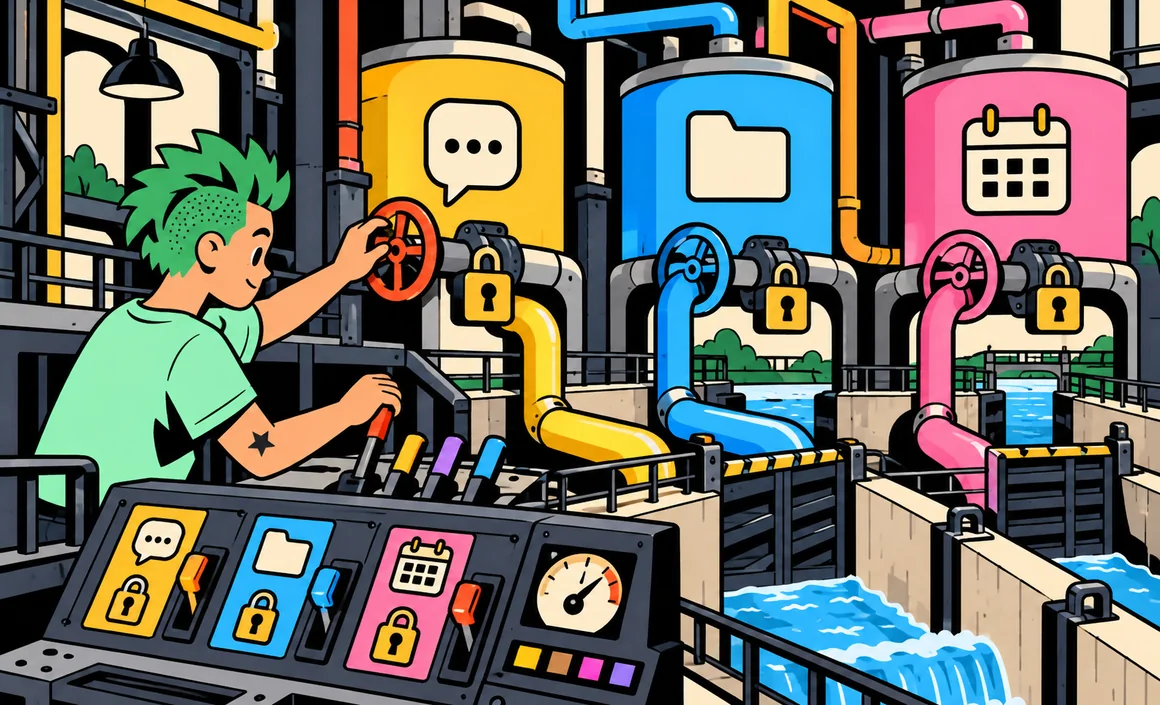
- A plugin can bundle Skills (reusable workflows) and connected apps (outside services like Drive, Slack or GitHub).
- You’ll find them in the plugin directory: Plugins → Plugin Directory → Install plugin.
- Which plugins you see depends on your plan, account, region and interface: not everyone has access to everything.
- Installing a plugin never bypasses your accounts’ permissions: always check the access it asks for.
Information checked on September 29, 2026.
Contents
- Why OpenAI is replacing custom GPTs
- What's inside a plugin?
- How to find and install a plugin
- How to use a plugin
- Who can use Plugins?
- What can you use Plugins for?
- My tips for choosing a plugin
- What happens to custom GPTs?
- What to do if you used GPTs
- Security and permissions: good habits
- What about other assistants?
- Plugins, projects, instructions: what does what?
- FAQ
- The bottom line
Why OpenAI is replacing custom GPTs
A custom GPT could combine instructions, knowledge files, capabilities, apps and sometimes actions, all bundled under one name.
With Plugins, OpenAI is going for a more modular setup. Instead of one all-in-one assistant per task, you assemble building blocks:
- a reusable way of working (the Skill);
- access to your tools (connected apps);
- and sometimes preconfigured templates for businesses.
On September 11, 2026, OpenAI announced the scheduled retirement of custom GPTs and recommends moving their workflows to Plugins.
What’s inside a plugin?
A plugin can bundle several components. Not every plugin includes the same ones.
Skills
A Skill is a reusable workflow. It can include instructions, examples, resources and even code, so ChatGPT handles a task more consistently from one time to the next.
In practice, a Skill is like a way of working written down once and for all: “here’s how our team writes meeting notes,” “here’s how to review a contractor’s quote,” “here’s how to put together a product page.”
Connected apps
A connected app links ChatGPT to an outside service: cloud storage like Google Drive, team chat like Slack, a developer tool like GitHub, and so on. Depending on the app, ChatGPT can search for information, read and summarize content, and sometimes take actions in the service.
App templates
Some plugins include app templates, mainly meant for workspace admins, to preconfigure use cases across an organization.
A plugin with no account to connect
A plugin can contain only Skills, with no outside service at all. In that case, there’s nothing to connect: you install the plugin and use its workflow right away.

How to find and install a plugin
When the feature is available on your account, here’s the official path:
- In the ChatGPT sidebar, open Plugins.
- Browse the Plugin Directory.
- Pick a plugin and click Install plugin.
- If the plugin includes an app that needs an account, click Connect, sign in to the service and review the permissions before confirming.
Depending on your account and the rollout, the interface may still say Apps instead of Plugins. That’s normal: OpenAI says it migrated the app directory to the plugin directory starting July 9, 2026, and your existing app connections aren’t deleted.
How to use a plugin
Once installed, a plugin or Skill can be used in several ways:
- with a mention: type @ followed by the plugin’s name in your message;
- from the tools menu: the + button, then More (or the equivalent), when your interface offers it;
- automatically: ChatGPT can call on an installed Skill when it matches your request.
Here’s an example of a request with a mention:
@[plugin name] Using the documents in my "Kitchen Remodel" folder, build a comparison table of the three contractor quotes with price, timeline and warranties, then list the questions I should ask each contractor.
My advice: start with explicit mentions. You’ll know exactly which plugin is doing the work, and you can judge whether it’s worth keeping.
Who can use Plugins?
The plugin directory is announced across ChatGPT plans. But the plugins you can actually see and use vary depending on:
- your plan (Free, Go, Plus, Pro, Business, Enterprise, Edu);
- your account and workspace;
- your role in the organization (member or admin);
- your region;
- the interface you’re using (web, desktop, mobile);
- the features included in the plugin.
So don’t be surprised if a plugin featured in an article or video doesn’t show up on your account. Some features, like creating and sharing Skills, are documented specifically for the Business, Enterprise, Healthcare and Edu plans.
What can you use Plugins for?
The available plugins vary from one account to another, and the directory keeps growing. Rather than naming specific plugins you might not see on your end, here are the main kinds of jobs they handle.
Working with your documents
With an app connected to your cloud storage, ChatGPT can find a document, summarize it or cross-reference several files, without you having to download and re-upload them. It’s the natural next step from what I describe in my tutorial on using ChatGPT with a PDF.
Keeping up with your team’s work
Connected to team chat or a project management tool, ChatGPT can help you catch up on a discussion, find a decision or prepare a recap, within the limits of your account’s permissions.
Always applying the same method
A Skill helps ChatGPT handle a repetitive task more consistently from one time to the next: same report structure, same checks, same tone. It’s especially useful at work, where several people need to produce consistent documents.
Coding and automation
For more technical folks, apps connected to developer tools let you work on code hosted online, always within the permissions you’ve granted.
My tips for choosing a plugin
The directory is going to grow, and not all plugins are equal. Before you install:
- Start from a real need: a plugin you don’t use just clutters your interface and your permissions.
- Look at who publishes it: a well-known developer, an “OpenAI Verified” badge, a clear description.
- Check what’s inside: only Skills, or also apps that ask for access to your accounts?
- Test it on a simple task before trusting it with important work.
- Clean house regularly: uninstall and disconnect what you no longer use.
What happens to custom GPTs?
That’s the question everyone who used them is asking. Here’s what’s confirmed so far:
- Existing GPTs keep working during the transition: you can still use the ones you built or the GPT Store ones available to you.
- Personal accounts can no longer create them: on the Free, Go, Plus and Pro plans, creating and publishing new GPTs is no longer available.
- Retirement is scheduled for December 11, 2026 across all plans, unless a different timeline is communicated to your account or workspace. Some Enterprise workspaces with an approved extension can go until February 11, 2027.
- For affected Enterprise workspaces, creation of new GPTs is set to end on October 26, 2026.
- A migration path is rolling out: when it’s available, the Migrate to plugin option shows up in My GPTs.
In other words: if you use GPTs, you have until December 11, 2026 to plan the transition, unless your account says otherwise. Keep an eye on the notices in ChatGPT.
What to do if you used GPTs
No need to panic, but plan ahead. Here’s what I recommend:
- Take stock of the GPTs you actually use, and the ones you built.
- Save the instructions of your own GPTs (copy them into a document) along with a list of their files.
- For a GPT someone else built, check its retirement notice and any guidance from its creator about a replacement: there may not be an equivalent in the plugin directory.
- Rebuild your simple use cases with the tools already available: for some simple uses, a ChatGPT project with instructions and files can be a handy alternative.
- Use the Migrate to plugin option in My GPTs if it’s offered to you.
For personal use, projects and custom instructions already give you part of what a GPT offered: a fixed context, instructions and reference documents.
Here are the instructions from my old custom GPT: [instructions]. Help me turn them into ChatGPT project instructions that are shorter and clearer, and tell me which files I should add to the project.
Security and permissions: good habits
Plugins can give ChatGPT access to your services. A few essential rules:
- A plugin never bypasses your permissions: installing a plugin doesn’t automatically give access to the data in the apps it includes. You always have to sign in to the service and approve the permissions.
- Read the permissions requested before approving a connection: read-only, write, send messages, delete… Only accept what’s necessary.
- The “OpenAI Verified” badge some plugins carry is a useful signal, but OpenAI notes it doesn’t replace your organization’s own security, privacy or vendor review.
- At work, admins can control plugin installation and access. Follow your organization’s rules.
- Disconnect apps you no longer use.
And as always: don’t share sensitive information with ChatGPT, through a plugin or otherwise, that you don’t want to share.
What about other assistants?
ChatGPT isn’t the only one offering this kind of customization. Gemini has Gems, custom versions of the assistant set up with your instructions for a recurring task (see my Gemini guide). Claude offers projects and also connects to outside services (see my Claude AI guide). The names change from tool to tool, but the idea is the same: give the assistant a method and controlled access to your tools, so it works in your context instead of in a vacuum.
Plugins, projects, instructions: what does what?
| Tool | What it does | Best for |
|---|---|---|
| Custom instructions | Tell ChatGPT who you are and how to respond | Your general preferences |
| Project | Group chats, files and instructions together | A specific long-term topic |
| Plugin (Skills) | Reuse a way of working | A repeated task, always done the same way |
| Plugin (connected apps) | Access an outside service | Working with your tools (Drive, Slack…) |
In practice, these tools work together: a project can take advantage of an installed Skill and a connected app, on top of its own instructions.
FAQ
Are Plugins the same as the old 2023 plugins?
No. The name is the same, but the 2026 system is a new workflow architecture that combines Skills and connected apps.
Are Plugins free?
The directory is announced across plans, but the plugins you can use vary with your plan, account and region. Some connected services may also require their own subscription.
Are my custom GPTs going away?
Their retirement is scheduled for December 11, 2026, with a possible extension to February 11, 2027 for some approved Enterprise workspaces. Until then, existing GPTs keep working.
Can I still create a custom GPT?
Not with a personal account (Free, Go, Plus, Pro). For personal use, go with a project with instructions and files.
Can a plugin take actions for me in my apps?
Depending on the connected app and the permissions you grant, ChatGPT can sometimes take actions in the service. Always check the permissions it asks for.
The bottom line
Plugins mark a turning point: custom GPTs are giving way to modular building blocks, Skills for ways of working and connected apps for your services. Explore the plugin directory, install only what’s useful to you, read the permissions, and start planning your GPTs’ transition now, before December 11, 2026.
To go further, see how to use ChatGPT projects and how to set up custom instructions.