

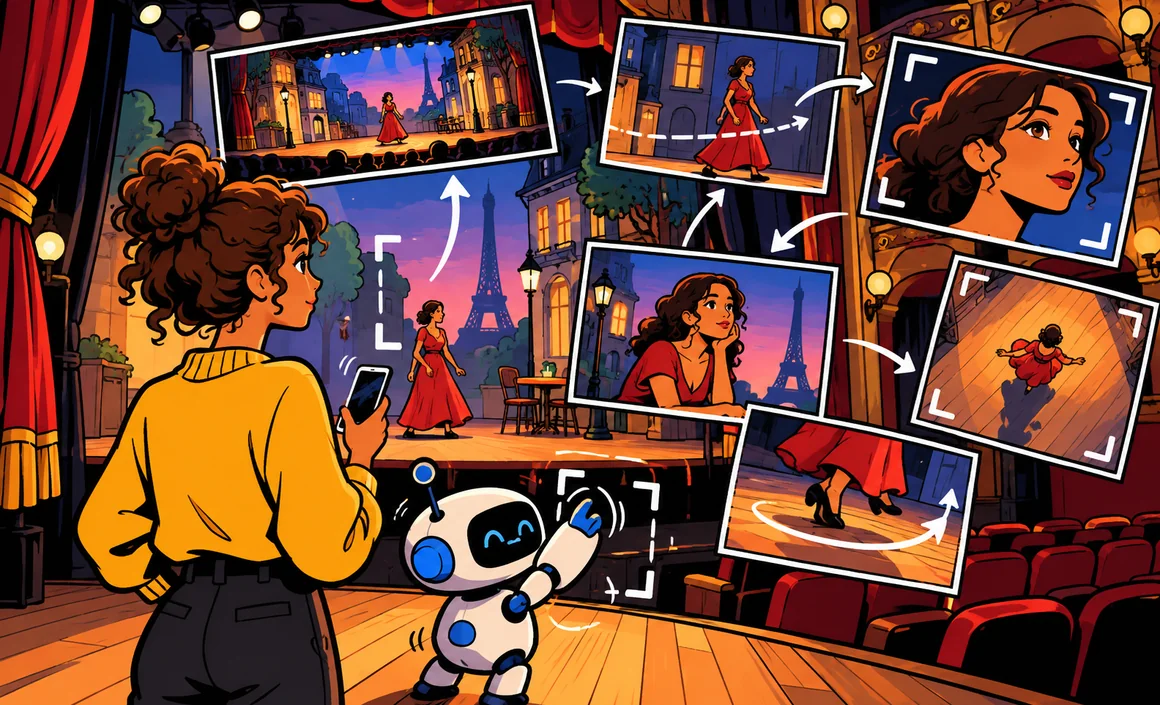
A short animated clip announcing the school fair, a quick sequence to go with a social media post, a vacation photo that comes to life, a mood shot to open a presentation: making a video with AI is now possible without a camera, actors, or complicated editing software. You describe a scene, or start from an image, and the tool generates a few seconds of video.
It’s impressive, but it’s also more demanding than making images: credits run out fast, clips are short, and getting a good result often takes several tries. In this beginner’s guide, I’ll walk you through the tools worth knowing in 2026 (Runway, Adobe Firefly, Google Flow and Canva), a step-by-step method, ready-to-copy prompts, and the limits you should know about before you dive in.
The short version
- Runway gives you 125 one-time credits for free, with a watermark; paid plans start at $15 a month.
- Adobe Firefly offers a few free video generations per day; the Standard plan gets you up to 20 five-second videos.
- Google Flow is included, with expanded access, in Google AI plans (minimum age 13, some features 18+).
- Canva has built-in AI video and image-to-video, both in the “Premium AI” tier, which free users can also use within their quota.
- Sora, OpenAI’s video tool, has shut down: don’t bother looking for it.
Information checked on September 29, 2026.
Contents
How does AI video creation work?
Video generators work on the same principle as image generators, with one extra challenge: motion. The model has to produce a sequence of consistent frames where characters, lighting and objects stay stable from one frame to the next. That’s why generated videos are usually short, just a few seconds long.
There are two main ways to get started:
- Text to video: you describe the scene (“a sailboat gliding across a lake at sunrise”) and the tool creates the clip.
- Image to video: you start from an existing image (a photo or an AI-generated illustration) and ask the tool to animate it. In my view, this is the most reliable method for beginners, because you already control the framing, colors and style.
Then you put your clips together in an editing tool, add a title, music or a voiceover, and your video is ready.
Tools for making a video with AI
Runway: the go-to tool for AI video
Runway specializes in video. It lets you create from text or from an image, with its Gen-4.5 model, third-party models, and a video editing tool called Aleph.
The free version comes with 125 one-time credits that don’t renew, 5 GB of storage, a limited selection of models, and a watermark on your videos. To give you an idea, a Gen-4.5 generation uses 12 credits per second, for 5- or 10-second clips: so the free credits are mostly for getting a feel for the tool.
Paid plans:
- Standard: $15 a month (or the equivalent of $12 a month billed yearly), 625 credits;
- Pro: $35 a month ($28 billed yearly), 2,250 credits;
- Max: $95 a month ($76 billed yearly), 9,500 credits.
Runway is available from age 13, with permission from a parent or guardian under 18 where required. It doesn’t claim ownership of your videos and doesn’t restrict commercial use, as long as you follow its terms.
Adobe Firefly: video inside the Adobe ecosystem
Firefly, Adobe’s creative AI, can also generate videos. The free version gives you a few generations per day, with varying limits. Paid plans run on credits:
- Standard ($9.99 a month, 2,000 credits): up to 20 five-second videos;
- Pro ($19.99 a month, 4,000 credits): up to 40 videos;
- Pro Plus ($49.99 a month, 10,000 credits): up to 100 videos;
- Premium ($199.99 a month): unlimited Firefly Video in a dedicated module.
Its big advantage, as I see it: if you already use other Adobe tools, everything stays in one place. You’ll need an Adobe ID, available from age 13.
Google Flow: video from Google
Google offers Flow, a video creation tool built into the Gemini and Google AI ecosystem. It’s included, with expanded access, in the Google AI Plus and Google AI Pro plans, which start at $9.99 a month (Google AI Plus; Google AI Pro is $19.99 a month). Heads-up: in the US, these plans require you to be at least 13, and some features require 18. To understand the plans, read my article on Google AI Pro.
Canva: AI video inside an editing tool
Canva has several video features: AI video and image-to-video fall under the “Premium AI” tier, which free users can also use within their quota, while high-quality clips fall under the Ultra AI tier. The free version includes a quota of up to 20 AI uses (Standard or Premium); Canva Pro costs $15 a month or $180 a year, and Pro+ $20 per person per month.
For me, Canva’s real value isn’t raw generation: it’s a simple editor where you can put your clips together, add text and music, and export in the right format for social media. Check out my Canva AI guide.
What about Sora?
You may have heard of Sora, OpenAI’s video generator. It has shut down: the app and website stopped working on April 26, 2026, and the API on September 24, 2026. If a tutorial recommends it, it’s out of date.
Comparison table
| Tool | Free version | Starting price | Minimum age |
|---|---|---|---|
| Runway | 125 one-time credits, watermark | $15/month (Standard) | 13 (parental consent where required) |
| Adobe Firefly | A few generations per day | $9.99 a month (Standard) | 13 (Adobe ID) |
| Google Flow | Expanded access with a Google AI plan | From $9.99/month | 13 (some features 18+) |
| Canva | Up to 20 AI uses | $15 a month or $180 a year (Pro) | 13 |
| Sora | Shut down | — | — |
Which tool should you start with?
Here’s my take, depending on who you are:
- You just want to try it without paying: Firefly, with its daily free generations, or Runway’s 125 credits, keeping in mind they don’t renew.
- You want to make videos for social media: Canva, because generating and editing happen in the same place.
- You already have a Google AI plan: try Flow, it’s included.
- You want to go further and create regularly: Runway, which specializes in video.
Step by step: making your first video
Let’s take Emily, who wants a short Instagram video to announce her community theater group’s end-of-season show.
- Define the goal: a 10- to 15-second vertical video, with the show date as text.
- Write a mini storyboard: three shots max. For example: a red curtain opening, a stage lit by a spotlight, an audience applauding.
- Create a starting image for each shot with an image generator (see my guide to creating an image with AI). This locks in the style and colors.
- Animate each image in the video tool, with a simple motion instruction.
- Generate several versions of each shot and keep the best one.
- Put the clips together in an editing tool like Canva.
- Add the text (date, venue) during editing rather than in the generation: it’ll be sharp and typo-free.
- Add music you have the rights to.
- Watch the whole video, several times, before posting it.
Ready-to-copy prompts
A good video prompt spells out the subject, the action, the setting, the camera movement, the lighting and the mood. Here are some examples to adapt.
For a text-to-video shot:
A white sailboat glides slowly across a calm lake at sunrise, light mist over the water, mountains in the background. Static camera, wide shot. Soft golden light, peaceful mood. Realistic look.
To animate an image:
Animate this image: the red curtain slowly opens on both sides of the stage, and the spotlight grows brighter in the center. Camera movement: slight dolly in. Don't change the colors or the style of the image.
For a product video:
A blue ceramic mug on a light wooden table, steam gently rising from the coffee. The camera slowly circles around the mug. Natural morning light, blurred background. Realistic look, no text.
For a mood shot:
A quiet small-town main street in New England at the end of the day, leaves stirring in the wind, a cat calmly crossing the street. Static camera at eye level. Warm colors, calm mood.
For an illustrated style:
Animated watercolor-style illustration: a little fox runs through a snowy forest as snowflakes gently fall. The camera follows the fox from the side. Pastel colors, magical mood.
My tips for writing these prompts:
- one main movement per shot;
- a simple camera move (static, dolly in, slow pan);
- no text in the generated video;
- no overcrowded scenes: the fewer elements, the more stable the result.
My guide to writing a good image prompt will also help you prepare your starting images.
Limits to be aware of
AI video is improving fast, but it still has weak spots you’ll definitely run into:
- Clips are short: a few seconds per generation. A longer video is built in editing.
- Consistency isn’t guaranteed: a character’s face or clothes can shift slightly from one shot to the next.
- Complex movement is a problem: hands, dancing, sports, and interactions between several people often come out weird.
- Generated text is often garbled: add it during editing.
- Credits go fast: every attempt counts, and a good shot often takes several tries.
- The watermark: videos made with Runway’s free version carry one.
Common beginner mistakes
- Aiming too long right away: start with a clip of a few seconds.
- Writing a vague prompt: “a nice beach video” gets you something bland; spell out the action, camera and lighting.
- Asking for too much in a single shot: break your idea into several shots.
- Wasting free credits: prepare your prompt ahead of time, for example with an assistant like ChatGPT, before you hit generate.
- Forgetting the format: vertical for stories and short videos, horizontal for YouTube or a presentation.
- Ignoring rights: music, starting images, real people.
Rules to follow
Just like with images, don’t use a real person’s face or voice without their consent, and never create a video meant to deceive, to make people believe something happened, or to harm someone. A realistic video is especially convincing: all the more reason to be careful, and to disclose that it was AI-generated when the context calls for it.
For starting images, only animate photos you took yourself or have the rights to. If you need to touch up a photo first, my guide to editing a photo with AI explains how to do it properly. And for commercial use, reread the terms of the tool and your plan.
My pre-publishing checklist
- The video is in the right format (vertical or horizontal).
- Text was added during editing and proofread.
- No character changes appearance in a distracting way.
- Movements look believable, with no distorted hands or faces.
- I have the rights to the music and the starting images.
- No real person appears without their consent.
- I’ve disclosed the use of AI if the context calls for it.
FAQ
Can you make a video with AI for free?
Yes, to try it out. Runway gives 125 one-time credits, with a watermark; Firefly offers a few free generations per day; Canva gives up to 20 AI uses for free, AI video included (Premium AI tier), but not the high-quality clips in the Ultra tier. For regular use, a subscription quickly becomes necessary.
How long is an AI-generated video?
A few seconds per generation. With Runway’s Gen-4.5 model, for example, a clip lasts 5 or 10 seconds. For a longer video, you put several clips together in editing.
Is Sora still available?
No. OpenAI shut down the Sora app and website on April 26, 2026, then its API on September 24, 2026. Turn to Runway, Firefly, Google Flow or Canva instead.
Do you have to be 18 to make a video with AI?
It depends on the tool. Runway, Firefly and Canva are available from age 13, with a parent’s consent in some cases. Google AI plans, which give expanded access to Flow, require you to be at least 13 in the US (some features require 18).
Can you use an AI video for commercial purposes?
Runway doesn’t restrict commercial use of the videos you create, as long as you follow its terms. For other tools, reread the terms of your plan, and always check the rights to any music and images you use.
Which tool is best for an Instagram or TikTok video?
In my opinion, Canva is the most convenient for beginners: you generate or import your clips, add text and music, then export in vertical format, all in one place.
The bottom line
To make a video with AI, start small: a clip of a few seconds, from an image you control, with a simple prompt (subject, action, camera movement, lighting). Try Firefly or Runway for free, use Canva for editing, give Google Flow a shot if you have a Google AI plan, and forget about Sora, which has shut down. Add your text during editing, check every shot, and respect rights and real people’s likenesses.
To go further, check out my list of free AI tools.
